
PRACTICAL CSV GUIDE
How to Convert a Supplier CSV for Shopify
Prepare Shopify import CSV data by mapping supplier columns, checking values and reviewing the output before importing.
A supplier catalog might call its product name “Product name” instead of “Title”, use a different price format, or contain missing titles and invalid stock values. Renaming a few headers is not always enough: review the meaning and formatting of the data before importing it.
Toolgrain’s supplier CSV to Shopify converter prepares a downloadable file. It does not directly import products into a Shopify store or connect to your store. You remain responsible for reviewing the file and completing the import in Shopify.
Example supplier CSV
This five-product example is entirely fictional. It deliberately includes a missing title, an invalid price, an invalid stock quantity and a blank price so you can see what needs review.
Supplier SKU,Product name,Description,Price,Stock quantity,Supplier category
00012345,Willow Desk Tray,Fictional desk tray,18.90,24,Desk accessories
00012350,,Fictional missing-name product,22.00,16,Home accessories
00012352,Trail Bottle Sleeve,Fictional fabric sleeve,not-a-price,42,Travel accessories
00012353,Sprout Plant Marker,Fictional wooden marker,3.20,many,Garden accessories
00012357,Pebble Soap Dish,Fictional bathroom dish,,30,Bath accessories
Map source columns to Shopify fields
| Supplier column | Shopify field | What to review |
|---|---|---|
| Supplier SKU | SKU | Keep the identifier as text, including leading zeros. |
| Product name | Title | Required: each product needs a non-empty title. |
| Description | Description | Optional product description. |
| Price | Price | Review the price format and any missing values. |
| Stock quantity | Inventory quantity | Mapped values must be non-negative whole numbers. |
| Supplier category | Type | A free-form label, not an automatic taxonomy match. |
Toolgrain suggests mappings for recognized headers; confirm them rather than assuming every supplier uses the same meaning. Title is required by the converter. Other mappings are optional, and unmapped handles are generated from the product title.
Type is different from Product category
Type is a free-form product label. A supplier value such as “Desk accessories” can be mapped there. Shopify’s Product category uses its standardized taxonomy, so an arbitrary supplier category is not automatically a valid category value.
Toolgrain does not reconcile supplier categories or verify taxonomy values. Mapping Product category produces a review warning. Check Shopify’s product CSV documentation before selecting standardized categories. Inventory quantity in the product CSV is intended for single-location stores; multi-location inventory needs a separate Shopify workflow.
Common data issues: errors vs. warnings
Missing product titles block export
In the example, SKU 00012350 has no product name. Map the correct source column, then supply a meaningful title. A missing Title mapping also blocks export.
Invalid prices block export
not-a-price is not a valid monetary value. Correct it to the intended non-negative amount, such as 16.90. Review the Price format setting when a supplier uses decimal commas or points.
Invalid inventory quantities block export
many is not a quantity. When Inventory quantity is mapped, the converter requires a non-negative whole number, such as 48. A blank mapped quantity is also an error.
Missing optional data needs context
Optional unmapped fields are generally omitted. A blank mapped Price produces a warning about Shopify’s default price rather than blocking export. Review it deliberately; a warning is not confirmation that the value is right for your store. Empty mapped image URLs also warn; malformed mapped image URLs are errors. Image availability is not checked.
Preserve identifiers
SKU values remain strings: 00012345 must not become 12345. Long numeric-looking SKUs must retain every digit. Import identifier columns as text in spreadsheet software; Toolgrain cannot restore digits or zeros lost before upload. Duplicate SKUs produce warnings, not automatic merging.
With the six mappings above, this example produces 3 blocking errors and 1 warning. Set the missing title to “Maple Bookmark”, replace the invalid price with 16.90 and stock with 48 to remove the errors. The blank price warning remains if you leave that value empty, even if you decide to use the default.
Export is enabled when there are products and no blocking errors. Warnings remain your responsibility to review. Passing Toolgrain’s checks does not guarantee a successful Shopify import.
See the Shopify Converter in action
Step 1 of 4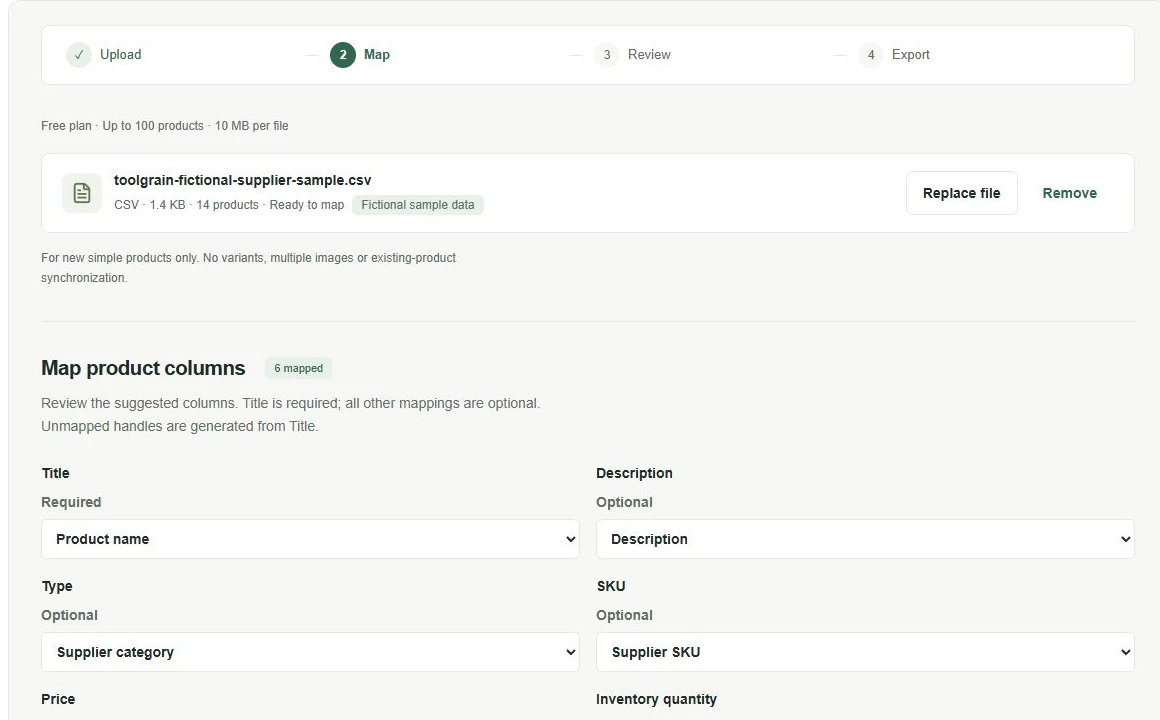
STEP 01
Load your supplier CSV
Upload your supplier file or explore 14 fictional sample products without preparing your own data.
Start with fictional sample products. No account required.
The tour uses the tool’s larger 14-product sample, not the five-product example above. The final screenshot shows the error filter after all issues have been corrected.
Step-by-step: Convert your supplier CSV
- Open Supplier CSV to Shopify. File parsing, mapping, validation and export run locally in your browser.
- Add your CSV or try the sample. Choose your supplier file, or select “Try with sample CSV” to explore 14 fictional products with intentional issues.
- Review suggested mappings. Check where Title, SKU, Description, Price and Inventory quantity get their values.
- Adjust mappings where necessary. Choose the correct supplier column for each supported field. Review optional mappings, Price format and import defaults. The default status is draft and publishing is false unless you change them or map those fields.
- Select “Validate and preview”. Generate the Shopify output preview and review the error and warning totals.
- Review errors and warnings. Use “Rows with errors”, “Rows with warnings” and “Next issue” to inspect affected cells. The next-issue button opens an editable problem cell when supported.
- Correct editable values. Click an editable cell, enter its intended value and save with the Save icon or Enter. Cancel with X or Escape; the information icon reveals issue details. Saving revalidates the working output. These corrections do not rewrite the uploaded source file.
- Download the CSV. Once blocking errors are resolved, review any warnings and select “Download Shopify CSV”.
- Review Shopify’s own import preview. Open the product import workflow in Shopify, select the prepared file and check the preview and any messages before completing the import.
Limitations to check before import
- Designed for new simple products; variants are not supported.
- Existing-product synchronization is not supported. Do not use this workflow to overwrite existing products with variants.
- Multiple images per product are not supported.
- Review Shopify import compatibility, field dependencies and your store’s requirements in Shopify’s own preview.
- Spreadsheet software can alter leading-zero or long identifiers. Recheck SKUs after opening and saving a CSV elsewhere.
Use the converter to prepare and inspect supported fields, not as a guarantee that Shopify will accept every file.
Prepare your supplier CSV with a reviewable workflow
Check mappings, correct invalid values and inspect the final file before importing it into Shopify.
Try Supplier CSV to ShopifyWorking with an updated supplier catalog? Compare catalog versions by SKU with CSV Compare →