
PRACTICAL CSV GUIDE
How to Compare Two CSV Files by SKU (Even When Rows Are Reordered)
Compare two CSV files by SKU to find product changes without confusing a different row order with different data.
A supplier might sort a new catalog by category instead of product name. Comparing row 2 with row 2 then puts unrelated products side by side. A CSV diff by key matches the same product first, so reordered rows alone do not count as changes.
Example: Original vs. updated catalog
These small catalogs contain entirely fictional products. Each file has four products, but the updated file changes the order and replaces one product.
sku,product_name,price,stock
00012345,Fictional linen pouch,12.90,20
00012346,Fictional desk tray,18.00,15
00012347,Fictional garden scoop,9.50,30
00012348,Fictional cotton cloth,6.00,40sku,product_name,price,stock
00012347,Fictional garden scoop,9.50,30
00012346,Fictional desk tray,18.00,11
00012349,Fictional paper basket,14.00,12
00012345,Fictional linen pouch,13.90,20Using sku as the matching key gives 1 added, 1 removed, 2 changed and 1 unchanged product. The two changed products each have one changed field.
| SKU | Result | Difference |
|---|---|---|
00012345 | Changed | Price: 12.90 → 13.90; stock stays 20. |
00012346 | Changed | Stock: 15 → 11; price stays 18.00. |
00012347 | Unchanged | All compared values are identical. |
00012348 | Removed | Present only in the original file. |
00012349 | Added | Present only in the updated file. |
The tool’s bundled sample catalogs are a separate, larger fictional example. Their results differ from this four-product walkthrough.
Why matching by SKU works
A SKU acts as a record identifier. Instead of relying on row position, the comparison looks up the same SKU in both files and compares its shared non-key columns. A SKU found only in the updated file is added; one found only in the original is removed.
SKUs must be unique within each file and consistent between files. Toolgrain trims surrounding whitespace in matching keys, but keeps case significant: ABC-01 and abc-01 are different keys. It does not use fuzzy matching or automatically resolve conflicting keys.
Only shared non-key columns are compared. Columns found in just one file are reported in the column structure summary; they do not themselves mark a matched row as changed.
See CSV Compare in action
Step 1 of 4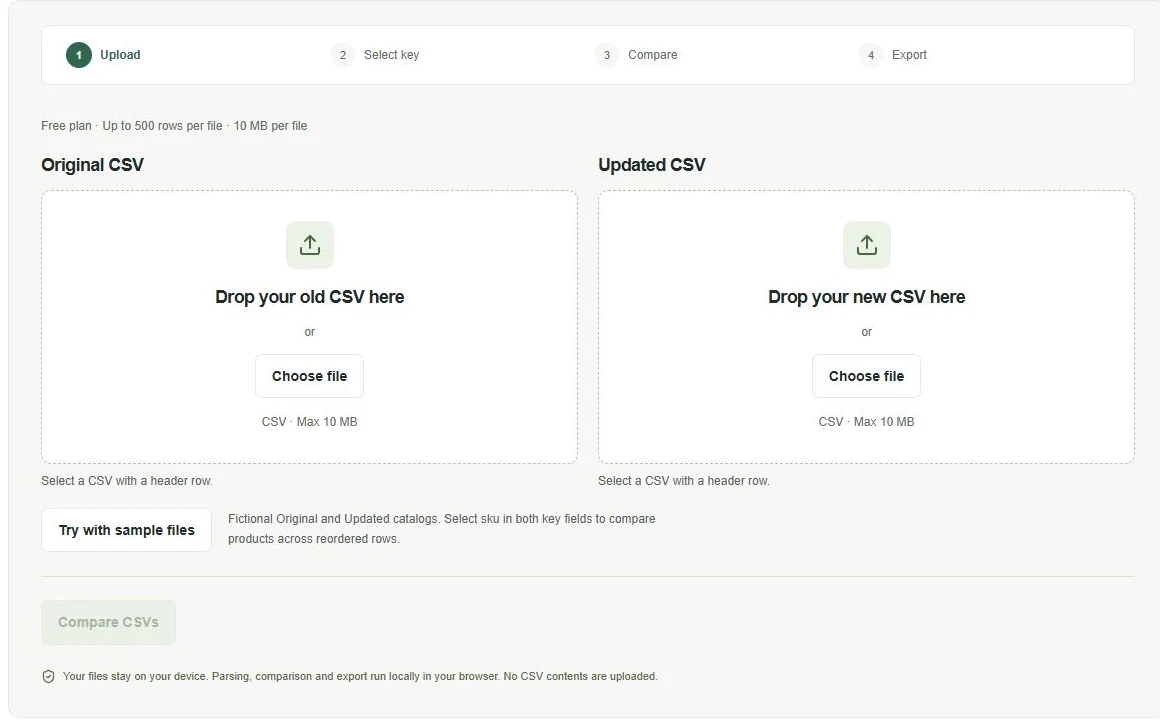
STEP 01
Load two CSV files
Start with your original and updated catalog, or try Toolgrain's sample files.
No account required. Your CSV files stay in your browser.
Tour screenshots use the larger bundled sample catalogs, not the four-product example above.
Step-by-step: Compare files with Toolgrain
- Open CSV Compare. Parsing, comparison and export run locally in your browser.
- Add the original and updated files. Upload each CSV to its corresponding area, or choose “Try with sample files” to load the bundled fictional catalogs. Use CSV files with a header row.
- Select SKU in both matching-key fields. Choose the SKU column under “Old file key” and “New file key”. Header names can differ between files; confirm that both selected columns identify the same products.
- Run the comparison. Select “Compare CSVs” after both files and keys are ready.
- Review the result groups. Inspect added, removed and changed rows. Unchanged rows remain separate. Review missing or duplicate keys in the key issues section rather than treating them as reliable matches.
- Inspect changed values. Expand a changed record to see its shared columns side by side, with old and new values and highlighted changed cells.
- Export the available results. Use the comparison’s export actions to download CSV reports for the result groups you need. This produces reports, not an automatically merged product catalog.
Common mistakes
Comparing by row position
A different sort order can make unchanged products appear different. Match by a stable key before comparing values.
Losing leading zeros in spreadsheets
Import SKU columns as text in spreadsheet software. If 00012345 becomes 12345 before saving, it is a different identifier. Toolgrain preserves CSV values as strings, but cannot restore zeros already lost in another application.
Duplicate or missing matching keys
Each product needs a non-empty, unique SKU within its file. Toolgrain reports missing and duplicate keys separately and excludes ambiguous records from normal comparison groups. Correct the source files and compare again; conflicts are not resolved automatically.
Inconsistent identifier or value formatting
Use the same SKU spelling, case and leading zeros in both files. Surrounding key whitespace is trimmed; other identifier differences remain significant. Shared data values are compared as text, so 12.9 and 12.90 count as a change even if you regard them as the same price.
Compare your product catalogs by SKU
Use a stable key to separate reordered rows from actual product changes. Try the fictional sample files before comparing your own catalogs.
Open CSV Compare